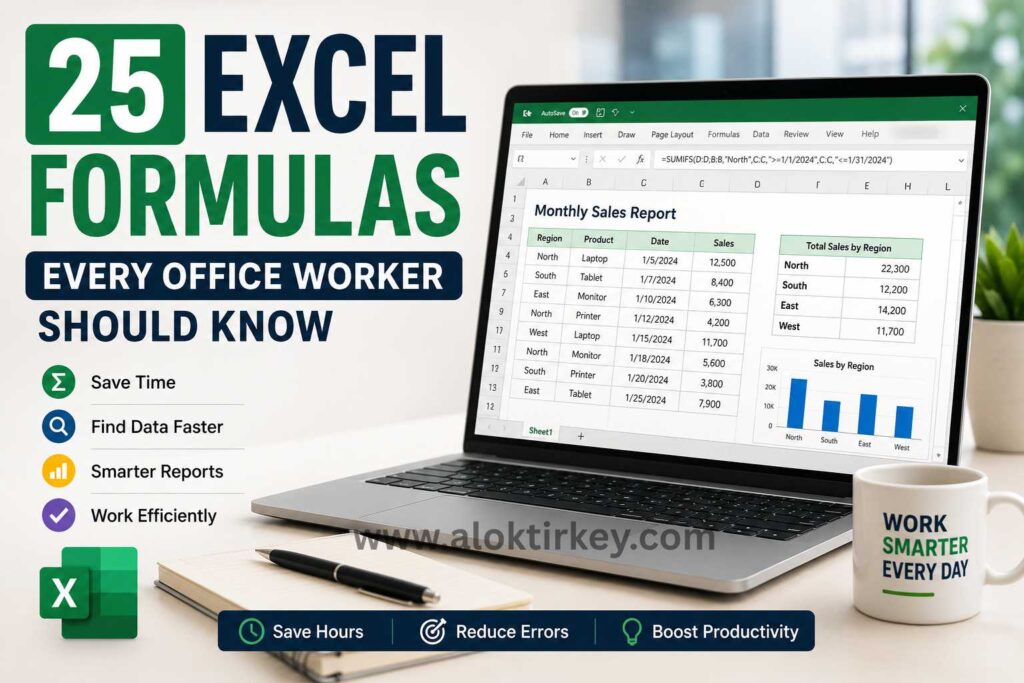
If you spend part of your day copying numbers, fixing reports, or cleaning messy exports, a few Excel formulas can save you hours. You don’t need to be an Excel power user to make them work, either.
Most office spreadsheets come down to the same jobs, totals, lookups, flags, text cleanup, and quick summaries. Once you know the right formulas for those tasks, Excel feels less like a chore and more like a shortcut.
Key Takeaways
- A small set of formulas can speed up reports, budgets, trackers, and data cleanup.
- Start with math, logic, and lookup formulas first, because you will use them the most.
- Modern Excel favors
XLOOKUPand dynamic arrays likeFILTER, but older formulas still show up in real files. SUMIFS,COUNTIFS, andIFERRORsolve many everyday office problems with fewer manual steps.
Why these Excel formulas matter in everyday office work
Most spreadsheet work is repetitive. You total expenses, compare lists, count records, and fix text that came from another system. A formula turns that repeat work into something you do once, then copy down.
That matters even more in Microsoft 365 and Excel 2026, where features like XLOOKUP, FILTER, and Copilot speed up modern workflows. Still, the biggest gains come from the basics. If you know how to total, test, match, and clean data, you can handle most office files with confidence.
How the right formula saves you time
A formula is often the difference between ten minutes and one second. Instead of retyping monthly totals, you can use =SUM(B2:B31) once and update the range next month. Instead of scanning a customer list by eye, you can use a lookup formula and pull the answer instantly.
If you repeat the same spreadsheet step every week, a formula is usually the fix.
That time adds up in budget sheets, sales logs, headcount reports, and status trackers.
What to focus on first if you are still learning Excel
Start with formulas that solve common office jobs. Basic math helps with totals and averages. Logic formulas help you flag results. Lookup formulas help you match IDs, names, and prices. Text formulas help when copied data looks clean but isn’t.
You can also use Copilot to explain a formula in plain language. Still, you will work faster when you understand what the formula is doing yourself.
The 25 Excel formulas every office worker should know
You don’t need hundreds of functions. You need a dependable set that fits the work sitting in your inbox.
Start with the formulas you will use every week
SUM is your daily workhorse. Use =SUM(F2:F50) to total sales, expenses, or hours without touching a calculator. AVERAGE gives you a fast mean, which helps when you need average order value or average response time. COUNT counts cells with numbers, so it helps when you need to know how many numeric entries made it into a report.
MIN shows the smallest value in a range, which is handy for the lowest price or earliest score. MAX shows the highest value, so you can spot your best month or top performer. ROUND cleans up decimals, for example, =ROUND(C2,2) for prices or percentages that should not show long fractions.
These formulas are simple, but they remove a lot of manual checking. They are also the fastest way to make a plain spreadsheet feel reliable.

### Use logic formulas to make Excel think for you
IF adds decision-making to your sheet. You can write =IF(D2>1000,"Over Budget","OK") and flag a problem at once. IFS helps when you have more than two outcomes, like grading performance as Low, Medium, or High.
AND and OR test multiple conditions. For example, AND works when both rules must be true, while OR works when either one is enough. Paired with IF, they help you check eligibility, deadlines, or approval rules.
IFERROR keeps reports clean when a formula fails. If a lookup cannot find a match, =IFERROR(XLOOKUP(...),"Not Found") looks far better than #N/A.
Find the right data without searching by hand
XLOOKUP is the modern first choice for most lookups. It can search left or right, it uses exact match by default, and the formula reads more clearly. If you need a price from a product code, XLOOKUP is usually the quickest answer.
VLOOKUP still matters because older files use it everywhere. It works well when your lookup value is in the first column of a table and the return value is to the right. Still, it breaks more easily when someone inserts a column.
INDEX and MATCH are a flexible pair. MATCH finds the position of a value, and INDEX returns the value from that position. If you do not have XLOOKUP, this pair is your best backup.
Clean messy text before it breaks your report
TRIM removes extra spaces that make values look the same when they are not. This matters when exports from email, PDFs, or old systems cause failed matches. CONCAT joins text from multiple cells, so you can combine first and last names or build a reference code.
TEXTJOIN does the same job with more control. It lets you add a delimiter, such as a comma or space, and ignore blanks. That makes it better for address lines, email lists, or full names. LEFT and RIGHT pull characters from the start or end of a cell, which helps when codes contain a fixed prefix or suffix.
MID extracts text from the middle of a string. If your invoice code stores the month in characters 5 to 6, MID can pull it out without manual editing.
Summarize data by department, product, or date
SUMIF adds numbers that meet one rule, such as total sales for one region. SUMIFS handles multiple rules, like total sales for one region in one month. If you build monthly reports, SUMIFS will become a favorite fast.
COUNTIF counts cells that meet one condition, such as invoices marked Late. COUNTIFS counts records using more than one rule, like Late invoices for a single team. AVERAGEIF returns the average for one condition, while AVERAGEIFS works across several filters.
FILTER is one of the best newer functions in Excel. It returns only the rows that match your rule, and the results spill automatically into nearby cells. That means you can pull all open tickets, unpaid invoices, or active clients without clicking filter buttons.
If you use modern Excel, SORT and UNIQUE also pair well with FILTER. They are useful, but the 25 formulas above cover the core work most office spreadsheets need.
How to pick the right formula for the job
Some formulas overlap, so it helps to pick by task rather than by name. This quick table makes the common choices easier.
| Situation | Best formula | Why it fits |
|---|---|---|
| Total numbers | SUM | Fastest way to add a range |
| One condition | SUMIF, COUNTIF, AVERAGEIF | Clean and simple |
| Multiple conditions | SUMIFS, COUNTIFS, AVERAGEIFS | Better for real business data |
| Lookup in modern Excel | XLOOKUP | Exact match by default, easier to read |
| Lookup in older files | VLOOKUP | Common in legacy workbooks |
| Formula may fail | IFERROR | Hides ugly errors with a useful message |
| Pull matching rows | FILTER | Dynamic results, no manual filtering |
The main takeaway is simple. Pick the formula that matches the number of conditions and the shape of your data.
When to use XLOOKUP instead of VLOOKUP
Use XLOOKUP when you can. It is easier to read, it does not rely on a column number, and it can return values from either side of your lookup column. That makes it safer when your sheet changes later.
Use VLOOKUP when you open an older workbook that already depends on it. You will still see it in finance templates, ERP exports, and inherited team files.
When you need SUMIFS, COUNTIFS, or AVERAGEIFS
Use the plural version when one rule is not enough. If you need expenses for Marketing in June, SUMIFS is the right fit. If you need the number of open tickets assigned to one person, COUNTIFS does it in one step.
This matters because office data rarely lives in one clean bucket. Most reports depend on date, team, status, location, or product at the same time.
Common mistakes that slow people down in Excel
Even a good formula can return bad results if the setup is off. Most mistakes come from small things, not hard things.
### Why your formula returns the wrong answer
Wrong cell references are a common cause. If you copy a formula down and the range shifts in the wrong way, your numbers change. Extra spaces also cause trouble, which is why TRIM is so useful. In lookup formulas, a bad range or the wrong match setting can send you to the wrong record.
Text stored as numbers creates another headache. A total may ignore a value because Excel reads it as text. Meanwhile, VLOOKUP can mislead you if you use approximate match by accident. In most office files, you want exact matching.
How to make formulas easier to read and copy
Use clear headers so you always know what a column contains. Keep ranges consistent, and check them before you copy a formula across a full report. If a formula gets too long, split the work across helper columns rather than forcing everything into one giant cell.
You should also test formulas on a few rows first. If the first five answers look right, the next five hundred usually will too. Small checks save you from sending a broken report later.
Conclusion
The right Excel formulas make you faster, more accurate, and far less dependent on manual fixes. If you learn the basics first, then add lookups, logic, and cleanup functions, your spreadsheets start working for you.
Start with SUM, IF, XLOOKUP, and SUMIFS, then build from there. A little practice today can make your next report feel a lot lighter.
Frequently Asked Questions About Excel Formulas for Office Work
Which Excel formulas should office workers learn first?
Start with SUM, IF, XLOOKUP, and SUMIFS. These formulas cover common tasks such as adding totals, flagging results, finding matching records, and summarizing data with multiple conditions.
When should you use XLOOKUP instead of VLOOKUP?
Use XLOOKUP when working in a modern version of Excel because it can search in either direction and uses exact matching by default. VLOOKUP remains useful when you need to maintain an older workbook that already depends on it.
Which Excel formulas handle multiple conditions?
SUMIFS, COUNTIFS, and AVERAGEIFS handle calculations that use two or more conditions. For example, SUMIFS can calculate expenses for a particular department during a specific month.
Which Excel formulas clean up messy text?
TRIM removes extra spaces, while CONCAT and TEXTJOIN combine text from multiple cells. LEFT, RIGHT, and MID extract characters from fixed positions, which helps clean codes, names, and imported records.
How can you prevent common Excel formula errors?
Check cell references before copying formulas, confirm that numbers aren’t stored as text, and use exact matching for lookups. IFERROR can replace errors such as #N/A with a clearer result, such as “Not Found.”
Read Also: Affiliate Marketing in 2026: What You Need to Grow Smarter